Tag: Awesome Screenshot and Screen Recorder

  • 13 Best Chrome Extensions for Graphic Designers to Create Stunning Graphics Easily

    A graphic designer’s job is not just to create appealing designs that are visually pleasing. They need the right tools to find the perfect color story, manage designs, get inspiration, provide solutions to complex brand stories, and handle all this while avoiding creativity block. Phew! That sounds like a lot. As simple as it might sound, a graphic designer’s job is to visualize the entire brand story and put out suitable graphics to convey the brand message.

    What’s better than some tools that make our task easier? What if you could easily extract all the colors of your competitor’s website or any other desired webpage with a click? Sounds like a relief. Let us look at some essential Chrome extensions for designers that make graphic designing, inspiration, and client management easier. No longer spending hours to find the right font or color, that so with a single click without having to move from one tab to another.

    Essential Chrome Extensions for Graphic Designers

    How to Become a Graphic Designer?

    Essential Chrome Extensions for Graphic Designers

    From getting inspiration to creating an entire brand story with your graphics, Chrome extensions can assist you with a lot of tasks as a graphic designer. It is not restricted to finding the right font or color palette. You could get over your creativity block and enhance your productivity. No more juggling between ten websites and twenty applications. Get it all done from one page within a few clicks. Here are some of the best Chrome extensions to help make your work as a graphic designer easier and more efficient:

    Color Picker for Chrome

    Rating: 4.1
    Best For: Choosing Desired Color Codes

    Color Picker - Best Chrome Extension for Graphic Designers
    Color Picker – Best Chrome Extension for Graphic Designers

    Color Picker is a fantastic Chrome extension for graphic designers that enables picking colors from any website. You can choose any color with just one click, and it will provide you with the color code in HEX and RGB options. This extension is extremely helpful for designers who want to create specific color schemes for their projects.

    You can now choose a color from a palette inside the extension window thanks to its new feature. As a result, graphic designers no longer need to look elsewhere for the specific color code they require for their designs.

    Web Screenshot

    Rating: 4.9
    Best For: Capturing Screenshots of Websites

    Web Screenshot - Best Chrome Extension for Graphic Designers
    Web Screenshot – Best Chrome Extension for Graphic Designers

    Another Chrome extension on the list is Web Screenshot. This makes it easier for graphic designers to screenshot complete web pages, even ones that require scrolling. With the help of this extension, you can quickly take a screenshot of a whole webpage and then crop it to only show the portion of the page you need.

    After taking the screenshot with this, you can save it in three formats on your PC: JPG, PNG, and PDF. All in all, this extension saves time and effort by providing designers with an easy way to take and crop screenshots of entire web pages, enabling them to present them exactly how they want them to.

    Picture in Picture

    Rating: 4.1
    Best For: Multitasking While Watching Videos

    Picture in Picture - Best Chrome Extension for Graphic Designers
    Picture in Picture – Best Chrome Extension for Graphic Designers

    The Picture in Picture Chrome extension is a great help for graphic designers who need to multitask while working on their ideas. You can use it to watch videos from well-known streaming websites like YouTube and others in a floating window.

    This Chrome extension makes it easier to work on your design while watching a video by enabling you to easily resize and move the floating window around your screen. For graphic designers who need to view tutorials or reference videos while working on their designs, this extension is perfect.

    ColorZilla

    Rating: 4.4
    Best For: Getting Color Reading
    ColorZilla - Best Chrome Extension for Graphic Designers
    ColorZilla – Best Chrome Extension for Graphic Designers

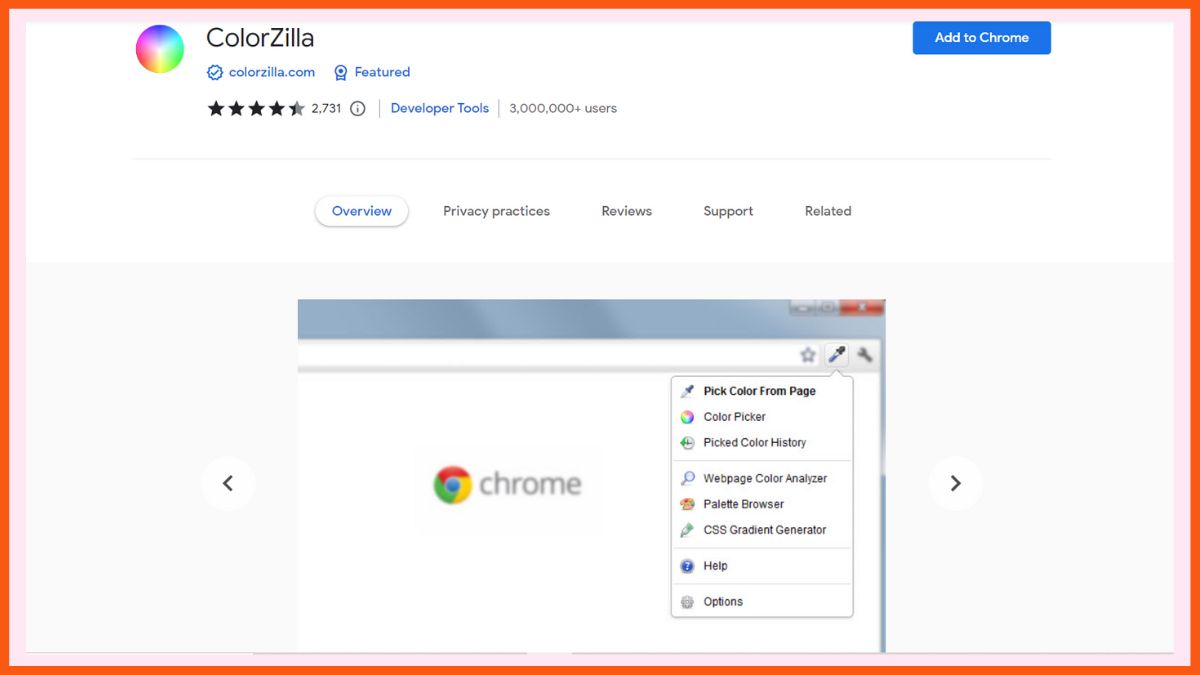
    ColorZilla is a popular extension that provides an advanced eyedropper, color picker, gradient generator, and much more. ColorZilla allows you to take a color reading from any place in your browser, instantly change it, and then paste it into another program. With a sophisticated Color Picker, you may obtain the color of each pixel on the page (similar to Photoshop). With 7 pre-installed palettes, you get the greatest CSS gradient generator and palette viewer.

    With a few clicks, you can acquire a color palette for any website as well as a history of recently selected colors. You also retrieve element information such as tag name, class, id, size, etc. Colors may be easily extracted from flash objects at any zoom level.

    CSS Peeper

    Rating: 4.7
    Best For: Style Inspection of a Website

    CSS Peeper - Best Chrome Extension for Graphic Designers
    CSS Peeper – Best Chrome Extension for Graphic Designers

    CSS Peeper is a CSS reader designed specifically for designers. With this Chrome extension, you can gain access to essential styles. It enables designers to focus on design while spending as little time as possible going into coding. There will be no more scrounging through code. Inspect styles in a straightforward, well-organized, and visually appealing manner.

    Have you ever wondered what a website’s line height, font size, or button size is? Then this is the ideal instrument for satisfying your curiosity. The extension makes it as simple as possible for you to inspect code. It also helps you to examine the hidden CSS style of site objects, colors, and materials.

    Awesome Screenshot and Screen Recorder

    Rating: 4.6
    Best For: Capturing and Recording the Screen

    Awesome Screenshot and Screen Recorder - Best Chrome Extension for Graphic Designers
    Awesome Screenshot and Screen Recorder – Best Chrome Extension for Graphic Designers

    Awesome Screenshot and Screen Recorder is a popular screen recorder, screen capture, and screenshot Chrome extension that can record displays in 720p, 1080p, or 4K resolution. It is quite useful for any designer’s cause. Its prominent features include:

    • 2 in 1 Local Screen Recorder and Cloud Screen Recorder.
    • Screenshot, screen capture, and screen recorder all in one.
    • Share recordings instantaneously with Jira, Slack, Trello, Asana, and GitHub using a shareable link.
    • Take a snapshot of the website you’re on, whether it’s the entire page, a specific location, or a visible portion.
    • Blur sensitive data on your screenshot.

    Texmage

    Rating: 4.5
    Best For: Making Creative Texmages

    Texmage - Best Chrome Extension for Graphic Designers
    Texmage – Best Chrome Extension for Graphic Designers

    Texmage Chrome extension is your helping hand when you want to convert an image into texmage by adding desired text. Start by picking an image of your choice and drop it into the tool, that is where all the magic will happen. Alternatively, you can start by pasting the image URL as well.

    From the font, font size, alignment, font style, and opacity to text/ background color, you can play around with all the elements to create stunning text images. It offers 5 font families and 12 color options for the background. Right along the tool, you can share the image easily with a click. Making text images was never this easy!

    Muzli 2

    Rating: 4.3
    Best For: Getting Design Ideas

    Muzli 2 - Best Chrome Extension for Graphic Designers
    Muzli 2 – Best Chrome Extension for Graphic Designers

    Muzli 2 is your end-to-end solution to stay updated and never run out of inspiration. Simply, install the extension to get new design ideas, fresh images and videos, and other graphics right on your default tab. It replaces your old boring webpage with design inspirations. It’s like Pinterest right on your browser.

    You also get handpicked feeds on the panel on your left side. You could choose which feeds to show and create a customized inspiration board. You get hand-picked content from Dribble, Behance, The Verge, and much more updated every hour to keep you updated.

    PhotoMania

    Rating: 4
    Best For: Editing Online Images

    PhotoMania - Best Chrome Extension for Graphic Designers
    PhotoMania – Best Chrome Extension for Graphic Designers

    PhotoMania is your studio to edit and convert your images into beautiful e-cards, frames, and much more. You can start editing the photo with a single click on the top right corner of the desired Google Image. Thereafter, you get hundreds of options to enhance the picture.

    You can add filters, and frames, change the design, and instantly see the before-after changes. Without having to run your image through a professional editor app, you can almost instantly modify the desired image and share/ save it.

    WhatFont

    Rating: 4
    Best For: Font Recognition on Web Pages

    WhatFont - Best Chrome Extension for Graphic Designers
    WhatFont – Best Chrome Extension for Graphic Designers

    WhatFont is a Chrome extension to help you identify the font of a webpage. For instance, if you like the font of a web page, let’s say this blog’s font (even though it’s a basic one), and you wish to use the same for yours. A developer can easily deploy Firebug and Webkit Inspector, but for others, this extension is a real-life saver. No more battling on the internet to find the right webpage font.

    As a graphic designer, you can skim through some web pages to find a font that you like and use this tool to identify the font in a single click. Not only that, it tells you about the services used for serving the desired web fonts. Choosing fonts for your webpage has become easier than ever.

    Page Ruler

    Rating: 3.9
    Best For: Measuring Page Elements

    Page Ruler - Best Chrome Extension for Graphic Designers
    Page Ruler – Best Chrome Extension for Graphic Designers

    The Page Ruler Chrome extension allows you to measure distances (in pixels) on a webpage. Using an easy-to-use ruler, determine the size of page items in pixels.

    When you move your mouse around the page, it draws a rectangle ruler. The width, height, start, and end of the ruler are all labelled with matching metrics in pixels. When you move your cursor, the rectangle shrinks, and all the numbers update. Simply touch the toolbar button once to activate the extension. Similarly, to disable the extension, press the toolbar button once again. In desktop PCs, this addon works with mouse clicks. You can use touch to draw the rectangle within the page on touch-enabled devices.

    Sumopaint

    Rating: 3.7
    Best For: Painting and Editing Images

    Sumopaint - Best Chrome Extension for Graphic Designers
    Sumopaint – Best Chrome Extension for Graphic Designers

    Sumopaint is a Chrome extension that allows you to paint and alter images. Sumo paint allows you to create layers with undo support in 11 blending modes and classic layer effects. While rotating, turning, zooming, and panning the image, you may quickly duplicate, merge, and flatten layers. You receive 20 filters and effects in the categories- – Blur, Distort, Noise, Pixelate, Sharpen, Posterize, and Threshold.

    You also receive professional painting tools including over 300 brushes, complex features like gravity and real-time bezier-curve smoothing, animated brushes, saturation tools, and so forth. You may improve photos using tools such as:

    • Unsharp mask.
    • Contrast/brightness.
    • Color balance.
    • Color temperature.
    • A clone stamp tool with over 300 brushes enabling dispersion and random rotation.

    Site Palette

    Rating: 2.6
    Best For: Color Extraction

    Site Palette - Best Chrome Extension for Graphic Designers
    Site Palette – Best Chrome Extension for Graphic Designers

    Site Palette is a free browser plugin for creating color palettes. This is a must-have tool for graphic designers and front-end developers to gather colors for any website. Among the features are:

    • Support for multiple palette generators.
    • Shareable links generated.
    • Preview palette image available for download.
    • Adobe Swatch support has been introduced.
    • Use Google Art Palette to fine-tune the palettes.
    • Print styles have been added: print palettes or save them to PDF.

    A browser addon for creating extensive palettes. A must-have tool for front-end developers and designers. Color scheme extraction is completely free.

    Conclusion

    These Chrome extensions are worth trying and adding to your list for enhanced productivity as a designer. Instead of spending hours staring at your screen or switching between applications, you can get so much done right there with one click.

    Our favorite is CSS Peeper, which takes care of the technical aspects of visual design so you can concentrate on your work.

    FAQs

    Which are the best Chrome extensions for graphic designers?

    Some of the best Chrome extensions for graphic designers are:

    • WhatFont
    • Texmage
    • ColorZilla
    • CSS Peeper
    • Muzli 2
    • PhotoMania

    Is there a Chrome extension to find design inspiration?

    Muzli 2 is a popular Chrome extension to help you get design inspiration from around the web.

    What does the WhatFont extension do?

    WhatFont is a Chrome extension to help you identify the font of a webpage. Not only that, it tells you about the services used for serving the desired web fonts.
  • Best Chrome Extensions for Screen Recording You Must Know About

    ‌‌Whether you are a freelancer, student, entrepreneur, or employee, you may have faced several instances where you need to record your screen. Screen recorders are often required to capture presentations, video calls, or to make tutorials for your employees. It can also be used to make a sales pitch for the new software that you have developed.

    If you don’t want to install any third-party extensions you can use Windows 10 in-built utility called Xbox Game Bar to record your screen. To start recording, press Win + Alt + R, simultaneously on your keyboard. To stop recording press the blue button which is present on the screen (or you can also press the same combination of keys which is Win + Alt + R). Press Win + G to access your recordings. Although the problem with this tool is that you cannot highlight or annotate things while you are recording.

    To solve this problem you can install chrome extensions. But, which screen recorder to install? Keep reading this article and you will surely find a screen recorder that matches your needs.

    Chrome Extensions for Screen Recording

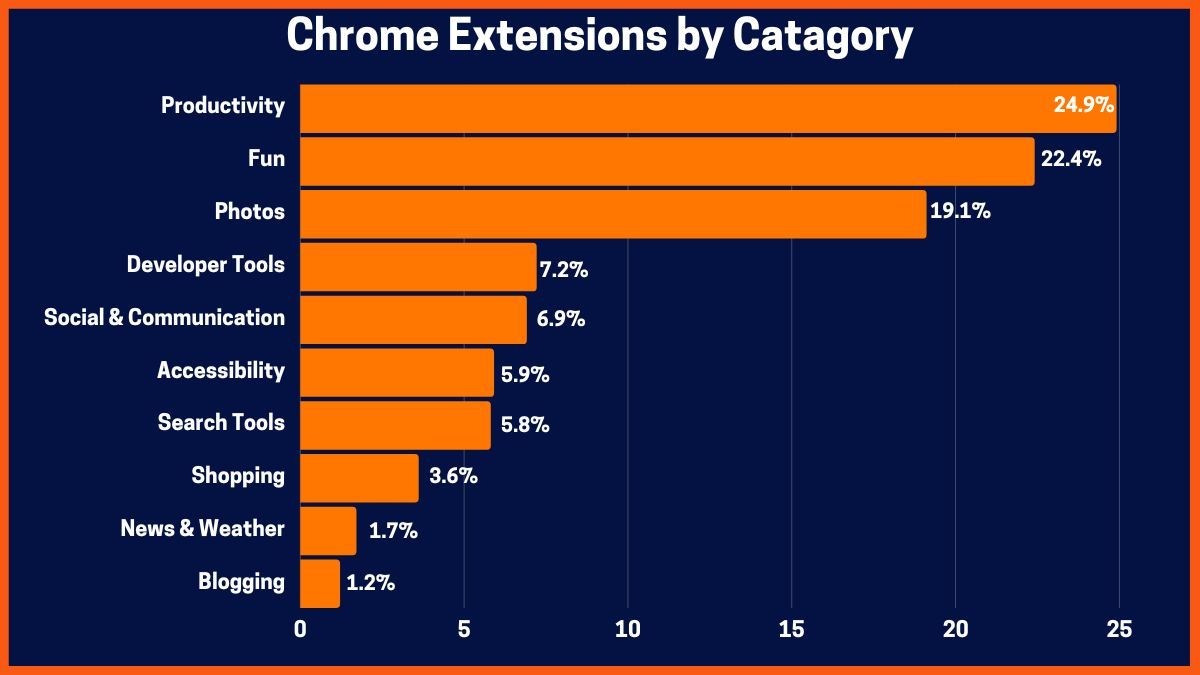
    Distribution of Chrome Extensions by Their Category in Percentage (Source: TrueList)
    Distribution of Chrome Extensions by Their Category in Percentage (Source: TrueList)

    Chrome Extensions for Screen Recording

    For screen recording, there are several options for chrome extensions that you can explore. We have added some of the best screen recording chrome extensions with their features. These are:

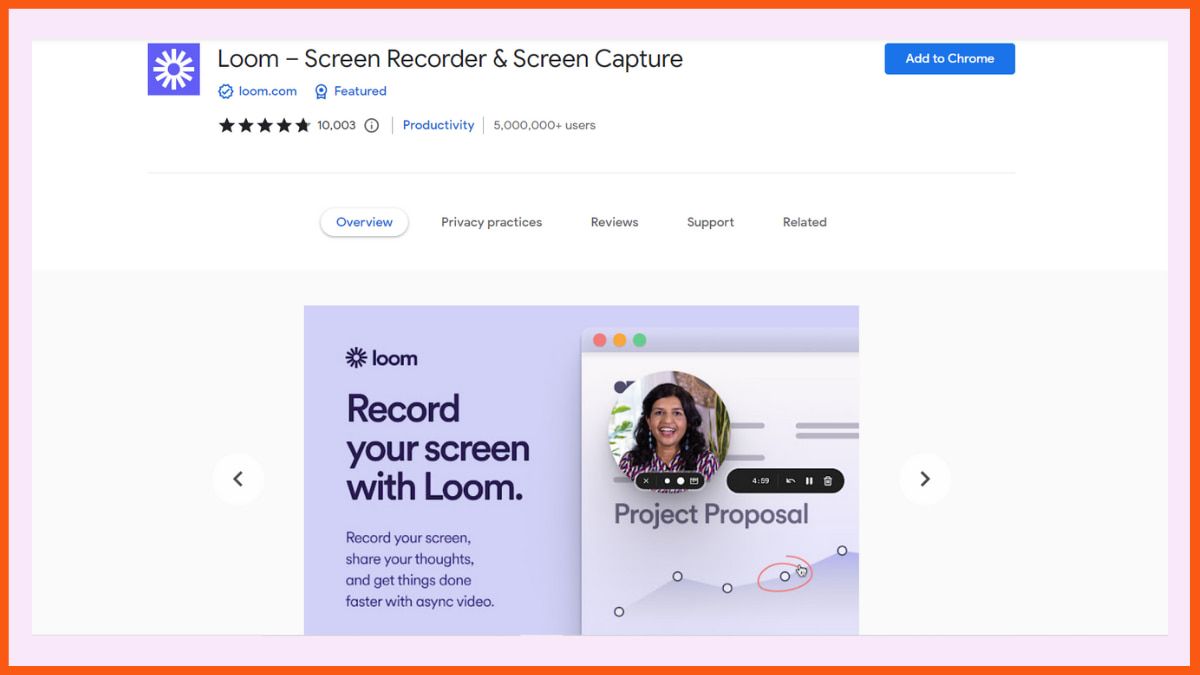
    Loom

    Rating: 4.7
    Best for: Overall Screen Recording

    Loom - Best Screen Recording Chrome Extension
    Loom – Best Screen Recording Chrome Extension

    Chances are that you might have heard about this tool. Loom is an easy-to-use screen recorder that allows you to record your screen, camera, internal audio, and microphone. Using Loom’s mobile app you can even record your android or iOS screen.

    Features of Loom:

    • Record in up to 4k HD resolution.
    • Viewers can leave timestamped comments and emoji reactions.
    • Get notifications when someone views or comments on your videos.
    • All the videos are uploaded to the cloud and you can instantly share them with a link.
    • Add tags to your videos and keep them in specific folders so, viewers can easily find them.
    • You can even download your videos from the cloud on your system.
    • Choose who can see your videos and password-protect them.
    • Integrates seamlessly with Slack.

    Pros:

    • Access all of your videos on the go using Loom’s Android or iOS app.
    • Since Loom also acts as a video hosting solution, you can add your Zoom and Google Meet recordings in Loom HQ.

    Cons:

    • The free plan has a 5-minute recording duration and you can only record 25 videos.

    Pricing:

    • Starter – Free
    • Business – $8.00 USD/ month (billed annually)
    • Enterprise – Contact the team

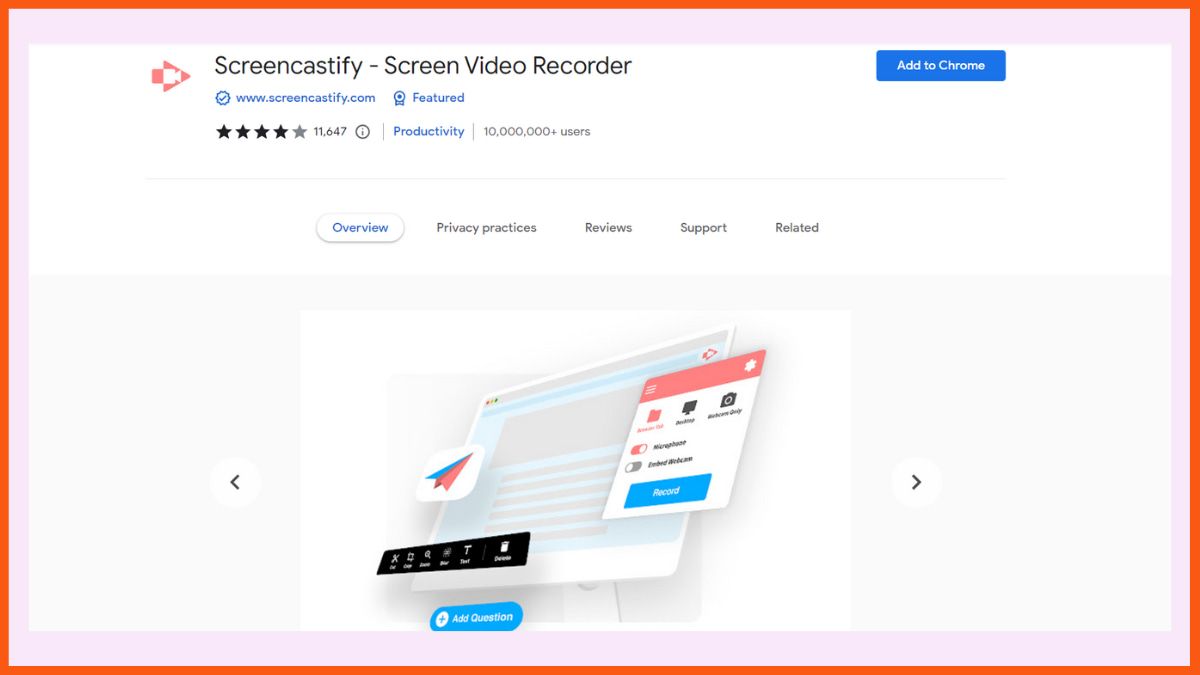
    Screencastify – Screen Video Recorder

    Rating: 4
    Best for: Easy and intuitive screen recording

    Screencastify - Best Screen Recording Chrome Extension
    Screencastify – Best Screen Recording Chrome Extension

    Screencastify is an excellent easy-to-use screen recorder that is loaded with dozens of helpful features. Just like many other screen recorders mentioned on this list, you can record your browser tab, whole desktop, and webcam. You can also add narrations to your recordings using a microphone. Moreover, Screencastify provides basic video editing like trimming at the beginning or end, merging two or more videos, and more.

    Screencastify Features:

    • While you’re recording you can focus your viewer’s attention on a specific idea using the pen tool.
    • You can even highlight specific text or images using a rectangle and add emojis.
    • Embed questions to specific parts of your videos to gauge if they have understood the topic.
    • See how many people watched your videos and how many times did they watch them.
    • You can also analyze how well they answered your questions.
    • Export your recordings as animated GIFs, MP3, or MP4.

    Pros:

    • Intuitive interface.
    • With its in-built video editor you can cut, crop, zoom in, and add text.
    • Save your videos directly to your Google Drive.
    • Directly publish your videos to YouTube.

    Cons:

    • With its free plan, you can only record 10 videos of 30 minutes.

    Pricing:

    • Starter – $7/ month (billed annually)
    • Pro – $10/ month (billed annually)

    Flonnect

    Rating: 4.7
    Best for: Screen and webcam recording with audio and easy sharing

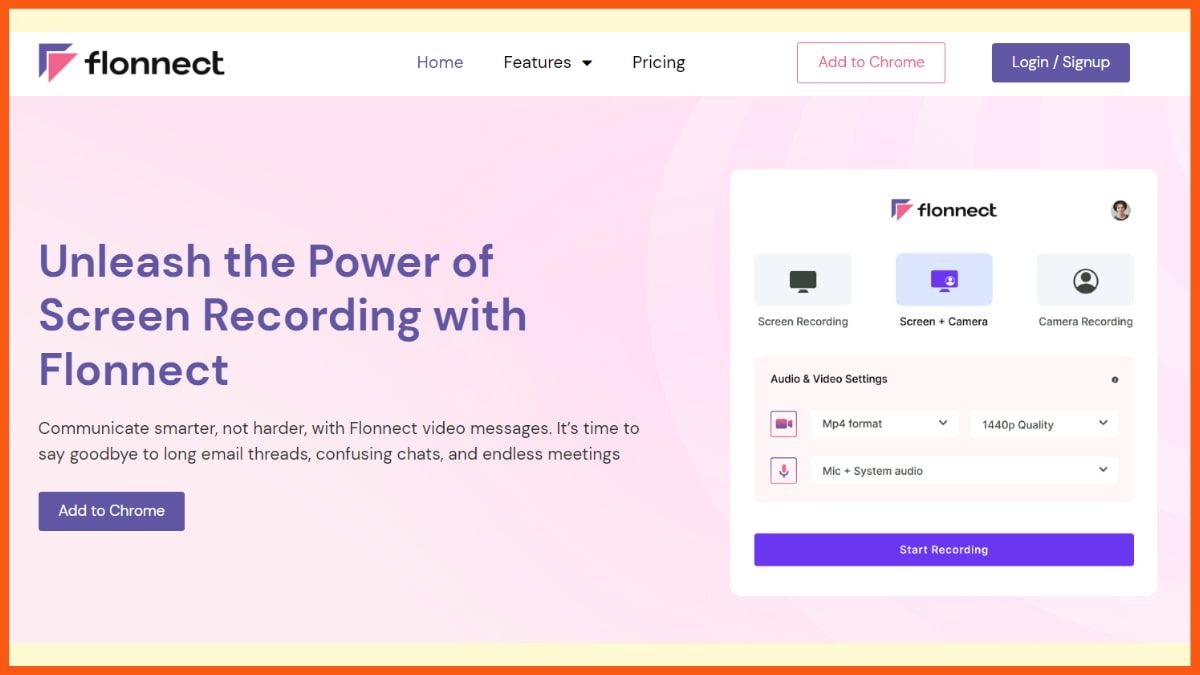
    Flonnect - Best Screen Recording Chrome Extension
    Flonnect – Best Screen Recording Chrome Extension

    Flonnect is one of the best Chrome extensions for screen recording. The extension allows you to easily record your webcam and screen along with the audio. Also, you have the flexibility to disable recording the audio if you do not wish to. So, whether you are creating any video tutorials, recording meetings, or gaming sessions, Flonnect has got you covered.

    Flonnect Features:

    • Record your entire desktop, a selected window, or a specific application window.
    • Record your screen along with your audio.
    • Quality control options allow you to adjust the recording quality as per your requirements.
    • Easily share your video link with others via email or other means.

    Pros:

    • Easy-to-use interface
    • Quality control options
    • Shareable video links
    • Download videos without any watermark

    Cons:

    • Premium features require a paid subscription

    Pricing:

    • Basic – Free
    • Early Bird – $2/ month (Billed annually)

    Screen Recorder

    Rating: 3.8
    Best for: Unlimited Screen Recording

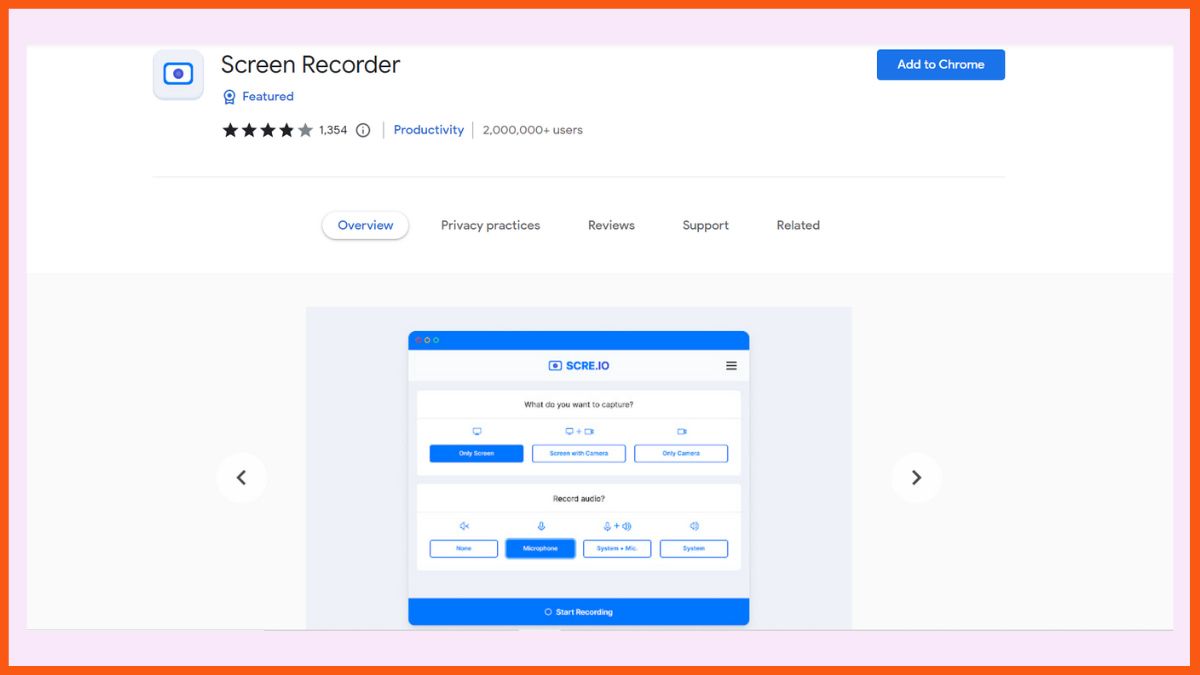
    Screen Recorder - Best Screen Recording Chrome Extension
    Screen Recorder – Best Screen Recording Chrome Extension

    Suiting the name, Screen Recorder is a fantastic Chrome extension for screen recording. It allows the users to access screen recording as often as they want. Plus, it’s free of cost, so it works for everyone.

    Screen Recorder comes with the feature of audio recording, through which you can record the audio using your system’s built-in microphone or any other audio source.

    Screen Recorder Key Features:

    • Audio recording using the built-in microphone.
    • Comes with a customization feature as well.
    • Record unlimited videos free of cost.

    Pros:

    • Unlimited video recording for free.
    • Secure and works offline.
    • Easy to use.

    Cons:

    • Does not come with video editing tools.

    Pricing:

    It’s free!

    How to record a screen using Screen Recorder? | A tutorial

    Fluvid – Screen Video Recorder

    Rating: 4.3
    Best for: Stream Online and Record Hour-Long Videos For Free

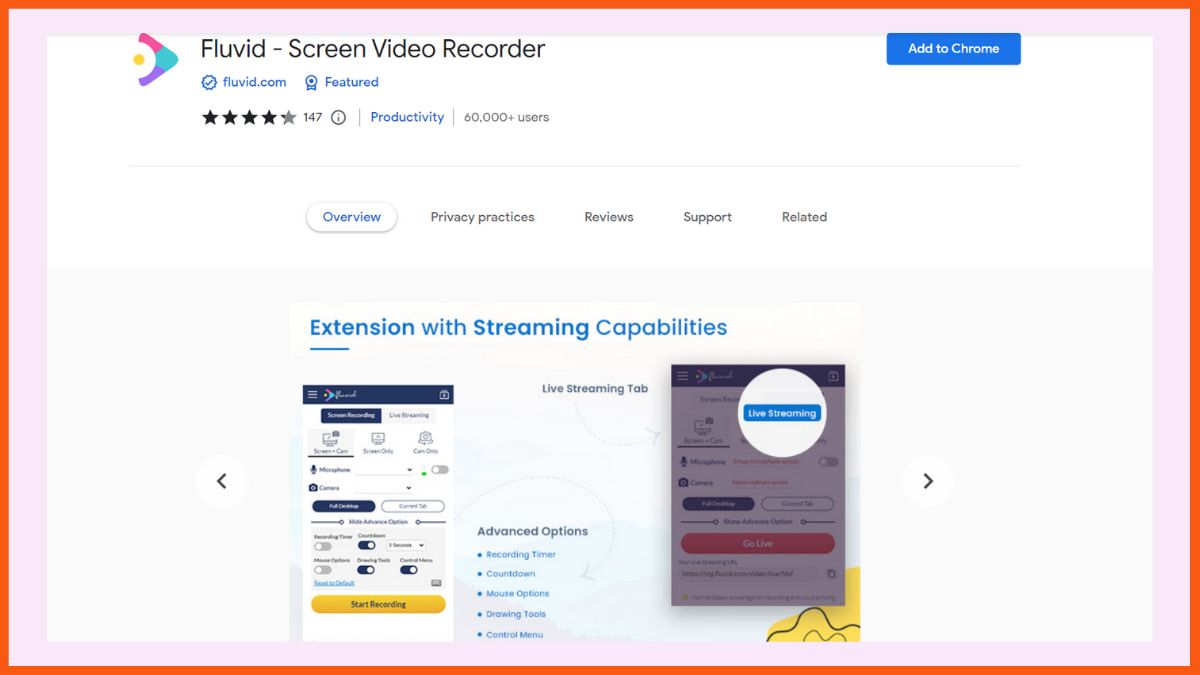
    Fluvid - Best Screen Recording Chrome Extension
    Fluvid – Best Screen Recording Chrome Extension

    Apart from the usual screen recording with a webcam feature; using Fluvid you can even stream online. It is a great feature for anyone interested in creating engaging content. It also allows the users to customize the video’s thumbnail.

    Features:

    • Record your screen with or without a webcam along with your microphone.
    • Trim or crop your recordings.
    • Add your videos to different folders.
    • Export your videos in MP4 format.
    • Get viewer insights and video engagement metrics.

    Pros:

    • No watermarks are added to the video even in the free plan.
    • You can record 50 videos of 1-hour duration which is the largest when compared to its rivals who cap the recording time limit to 5 minutes.
    • Perform live streaming for up to 1 hour with a maximum of 50 participants.

    Cons:

    • Limited editing and annotation tools.
    • No advanced analytics.

    Pricing:

    • Pro – $8/month

    Nimbus Screenshot & Screen Video Recorder

    Rating: 4.6
    Best for: Organizing All Your Information in One Place Using Nimbus Note

    Nimbus Screenshot & Screen Video Recorder - Best Screen Recording Chrome Extension
    Nimbus Screenshot & Screen Video Recorder – Best Screen Recording Chrome Extension

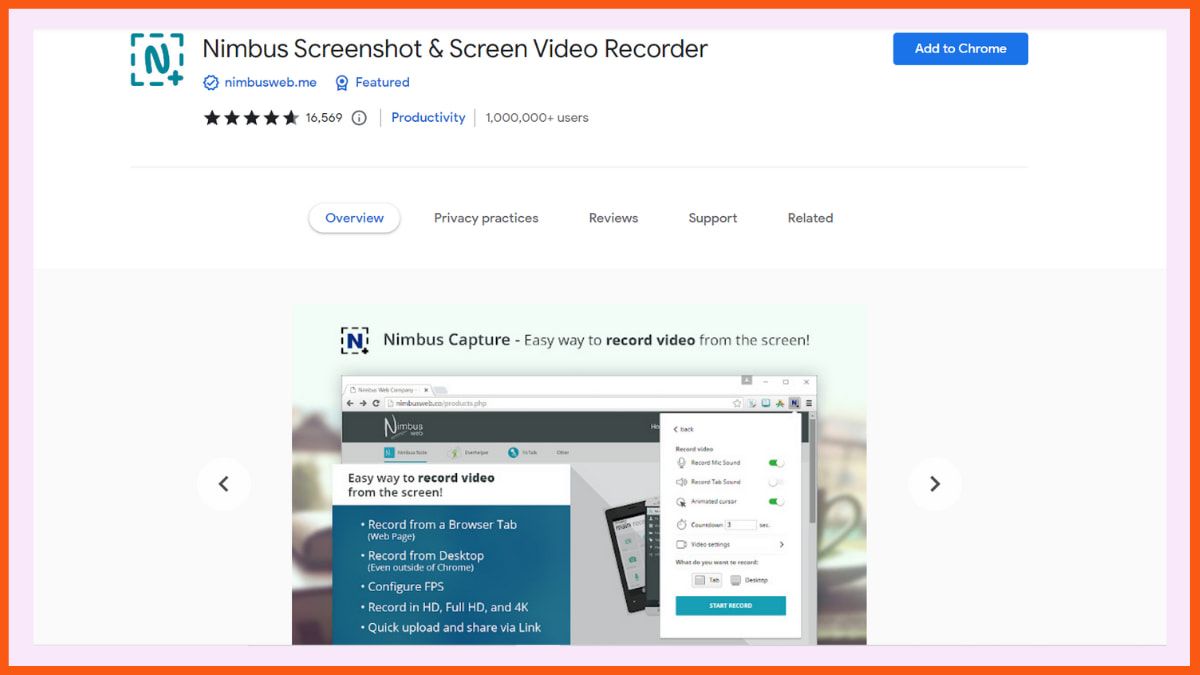
    Nimbus Screen Recorder allows you to capture the entire desktop, a tab, and a web camera with your microphone sound. You can also take screenshots of an entire web page or a selected area.

    However, if you are looking for a free tool then Nimbus is not for you since most of the advanced features are included in the premium plan. Although if you upgrade to its pro plan you will unlock the true potential of this tool.

    Features:

    • Annotate your videos with various shapes, including arrows and rectangles.
    • Add arrows and stickers and highlight text on your screenshots.
    • With its select and scroll option, you can take screenshots of the webpage while scrolling down.

    Pros:

    • Save your videos on your disk or to Nimbus Note where you can organize all of your videos and screenshots in one place.

    Cons:

    • Most of the helpful features like editing, uploading videos to Drive and adding your own watermark are all included in the premium plan.
    • In the free plan, you can record videos for up to 5 minutes.

    Pricing:

    • Pro – $4/month
    • Team – $5/month per user
    • Combo Pro – $6/month per user
    • Business – $8/month per user

    Vidyard

    Rating: 4.3
    Best for: Tracking Viewers of Your Videos

    Vidyard - Best Screen Recording Chrome Extension
    Vidyard – Best Screen Recording Chrome Extension

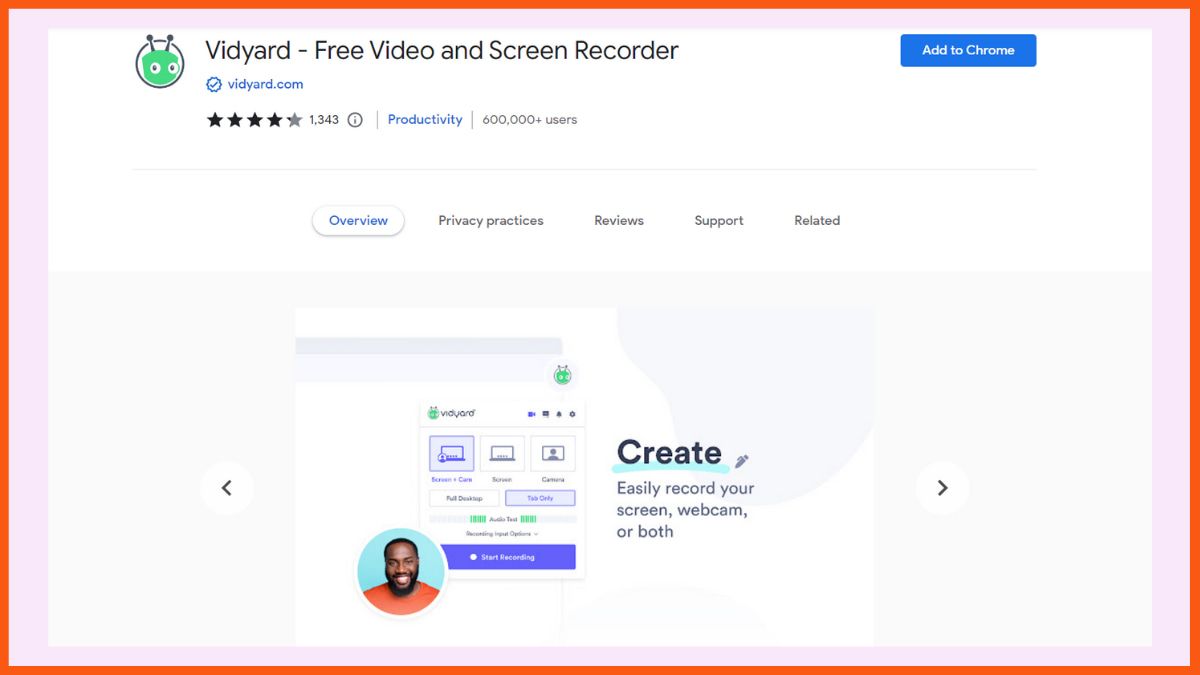
    Vidyard Chrome extension is mainly famous for its feature of tracking who watches the videos. Using Vidyard you can record your screen and webcam without any complications. The process of sharing your videos is also straightforward and you will also get viewer metrics as well.

    Features:

    • Record high-quality (HD) videos.
    • Embed your video on your website or share it on social media.
    • You can also share your videos through email.
    • Get metrics on who is watching your videos and for how long.
    • Receive notifications when someone watches your video.
    • Trim your videos.

    Pros:

    • To spice up your videos you can add animated GIF thumbnails.
    • Add speaking notes and draw on the screen while recording.

    Cons:

    • No editing features.
    • With its free plan, you can record and upload up to 25 videos. The video recording length is 30 minutes.

    Pricing:

    • Pro – $29/per month
    • Business – Contact the team

    Awesome Screenshot and Screen Recorder

    Rating: 4.6
    Best for: Recording Screen and Taking Screenshots Using a Single Tool

    Awesome Screenshot and Screen Recorder - Best Screen Recording Chrome Extension
    Awesome Screenshot and Screen Recorder – Best Screen Recording Chrome Extension

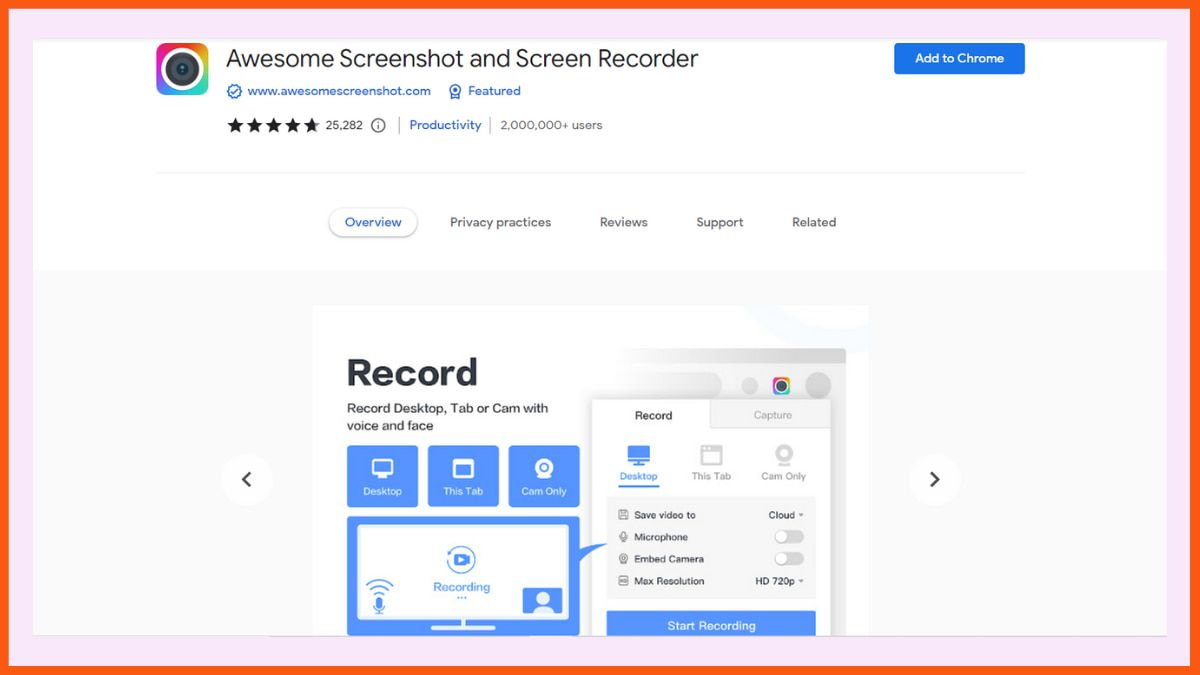
    As the name suggests using this tool you can capture your desktop screen, webpage, or webcam and also take screenshots of the entire page, selected area or visible part. After recording the video you can share it with others using a link. It has been there in this business for 10+ years and has over 3 million users globally.

    Features:

    • Include your face in your video by embedding your webcam.
    • Annotate the screen while recording or add annotations afterwards.
    • Save your recordings on your online account or on your system.
    • Download videos in MP4 format.
    • You can share the recording in Jira, Slack, Trello, Asana, and GitHub.
    • Annotate your screenshots with circles, rectangles, lines, etc.
    • Highlight important information on your screenshots and blur sensitive information.
    • Save the screenshot as an image in PNG or JPG format and download it as a PDF.

    Pros:

    • Unlimited video recordings in the free plan.
    • All the videos are uploaded to the cloud and you can instantly share them.
    • With its two-tab menu, you can quickly switch between Awesome Screenshot and Awesome Screen Recorder.
    • Amazing customer support.

    Cons:

    • You cannot record the screen and webcam at the same time.
    • You can only record for up to 5 minutes in the free plan.

    Pricing:

    • Basic – $6/month
    • Professional – $8/month

    Movavi Screen Recorder

    Rating: 3.1
    Best for: Recording Unlimited Videos With No Time Restrictions

    Movavi Screen Recorder - Best Screen Recording Chrome Extension
    Movavi Screen Recorder – Best Screen Recording Chrome Extension

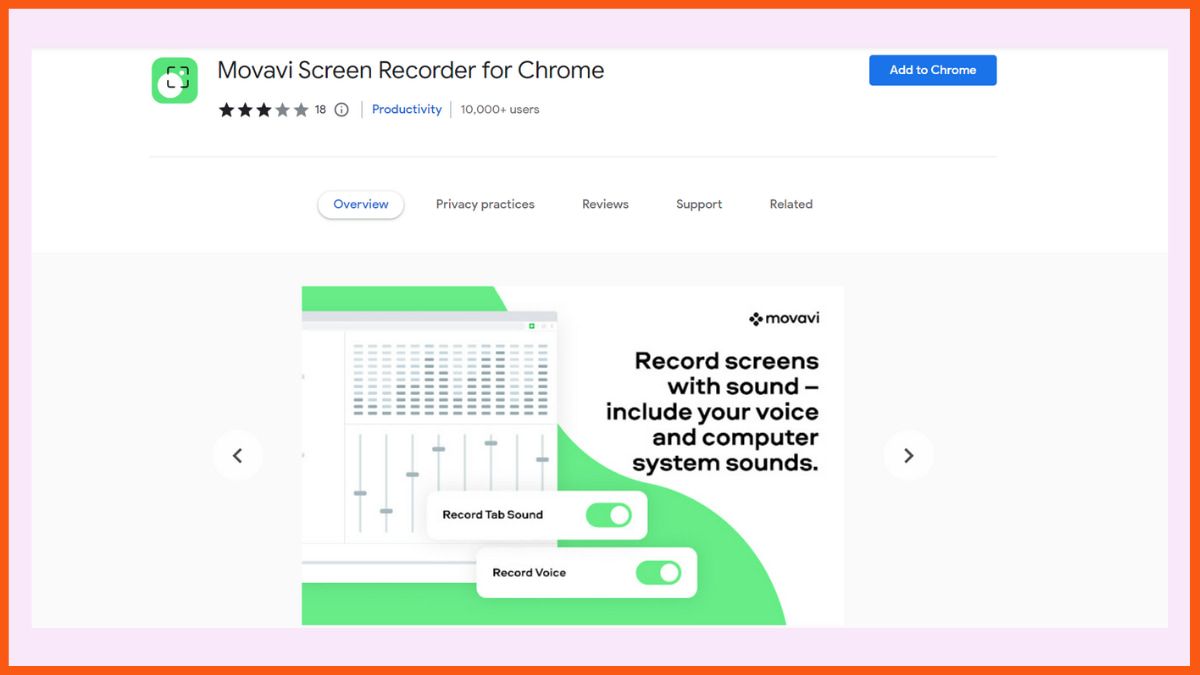
    Using the Movavi screen recorder Chrome extension, you can record your desktop screen or any webpage available on the internet. There is no mandatory registration required to download the extension. You also don’t need to install any extra plugins. Just install the extension to your Google Chrome and you are good to go.

    Features:

    • Record any screen, window or tab on your desktop.
    • Capture your voice with a microphone and record tab sounds.
    • Embed your webcam image into the recorded video.
    • Record your Zoom meetings, Google Hangouts sessions, Skype conversations, etc.
    • Download the recorded videos on your system for free.

    Pros:

    • You can record unlimited videos.
    • At the same time, there are no restrictions on the length of the video you can record.
    • It is one of the safest screen recorders since it doesn’t scan your browser data.

    Cons:

    • If you use the free plan, all the videos will have a watermark. To remove it, you need to upgrade to the premium plan.
    • There is no in-built option to edit your recorded videos.

    Pricing:

    • 1 PC – ₹1,499 (1-year subscription)
    • 1 PC – ₹1,999 (Lifetime)

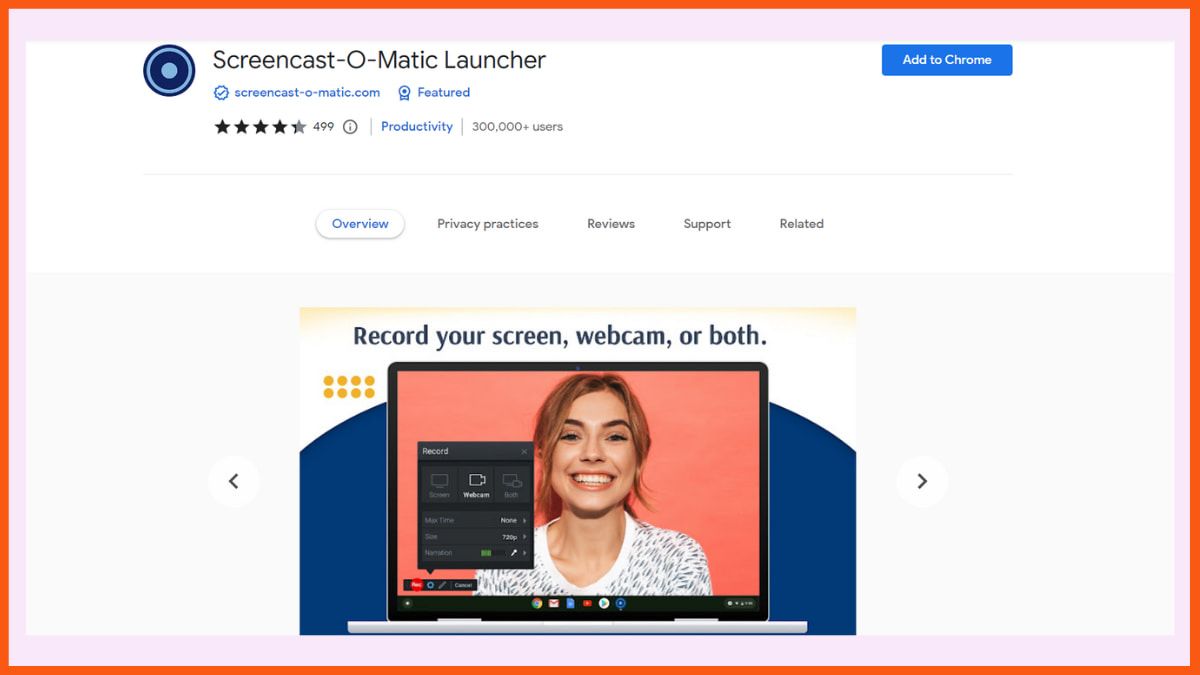
    Screencast-O-Matic Launcher

    Rating: 4.4
    Best for: Adding Transitions, Music, Annotations and Drawing

    Screencast-O-Matic - Best Screen Recording Chrome Extension
    Screencast-O-Matic – Best Screen Recording Chrome Extension

    Screencast-O-Matic Launcher provides a comprehensive video recording solution. You can record your entire desktop, web browser, an area of your computer screen, and webcam. It also offers various editing and hosting solutions.

    Features:

    • Host your videos and organize them into different folders.
    • Customize the video player.
    • Set a publish or expiration date.
    • Easily share your video on YouTube, Vimeo, Google Drive, or Social Media.
    • Add rich text, arrows, shapes, and images,
    • Import your own music or add stock music from the music library.
    • Add your voice narration.
    • Using its video editor you can cut, copy, resize, and merge different sections of the video together.
    • Control the visibility of your videos and add password protection.

    Pros:

    • You can record unlimited videos with its free plan.
    • Enhance the viewing experience with animate overlays and transitions.
    • Using the drawing tools you can draw anything on your screen while recording.
    • Adjust the speed of your video and add slow motion.

    Cons:

    • You can only record videos for up to 15 minutes.

    Pricing:

    • Solo Deluxe – $4/month
    • Solo Premier – $6/month
    • Solo Max – $10/month
    • Team Business – $8/month/user

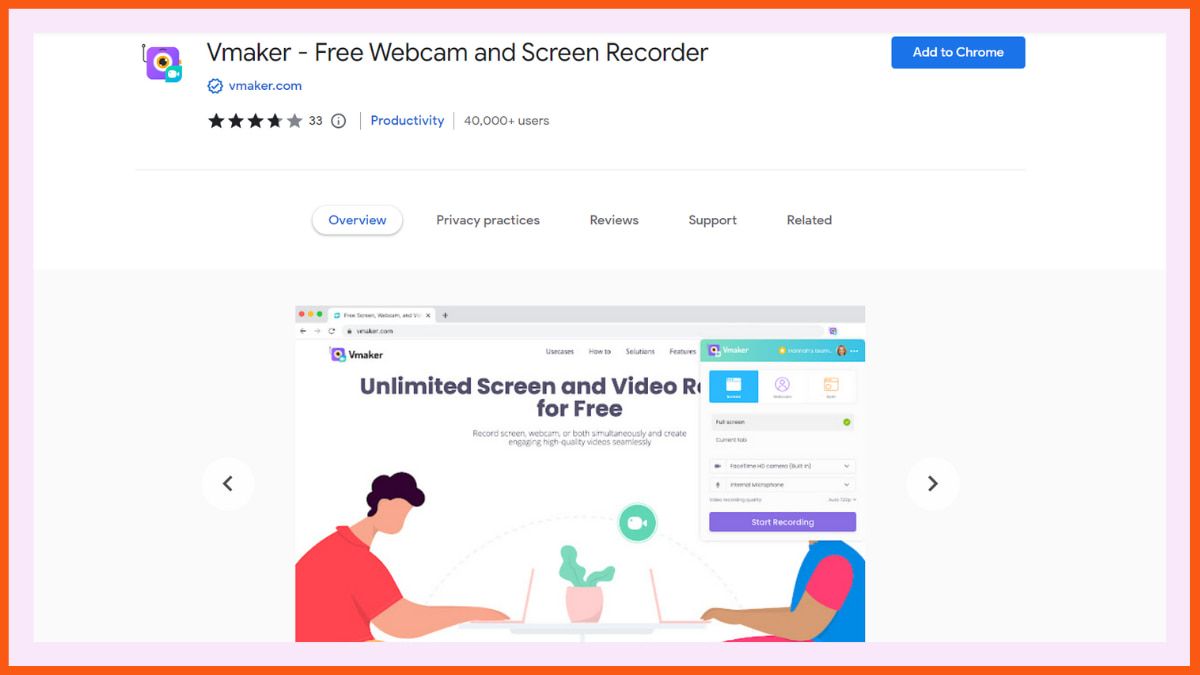
    Vmaker

    Rating: 3.7
    Best for: Reducing Background Noise

    Vmaker - Best Screen Recording Chrome Extension
    Vmaker – Best Screen Recording Chrome Extension

    You can record your screen, webcam or both with audio and share them instantly with just a click. With Vmaker, you can record videos in HD quality of up to 4k using screen annotation and mouse emphasis.

    Features:

    • You can also choose between multiple webcams and microphones connected to your device.
    • Record videos with basic frames and filters.
    • Reduce background noises while recording videos.
    • With its editing suite, you can trim, flip, crop, zoom in, mute/unmute and rotate videos.
    • Share your videos directly to LinkedIn, Facebook, Twitter, and Gmail.

    Pros:

    • You can record unlimited videos in its free plan.
    • You would also get unlimited cloud storage.

    Cons:

    • The free plan only allows you to record videos for up to 7 minutes.

    Pricing:

    • Starter –  $10/month
    • Team –  $15/month

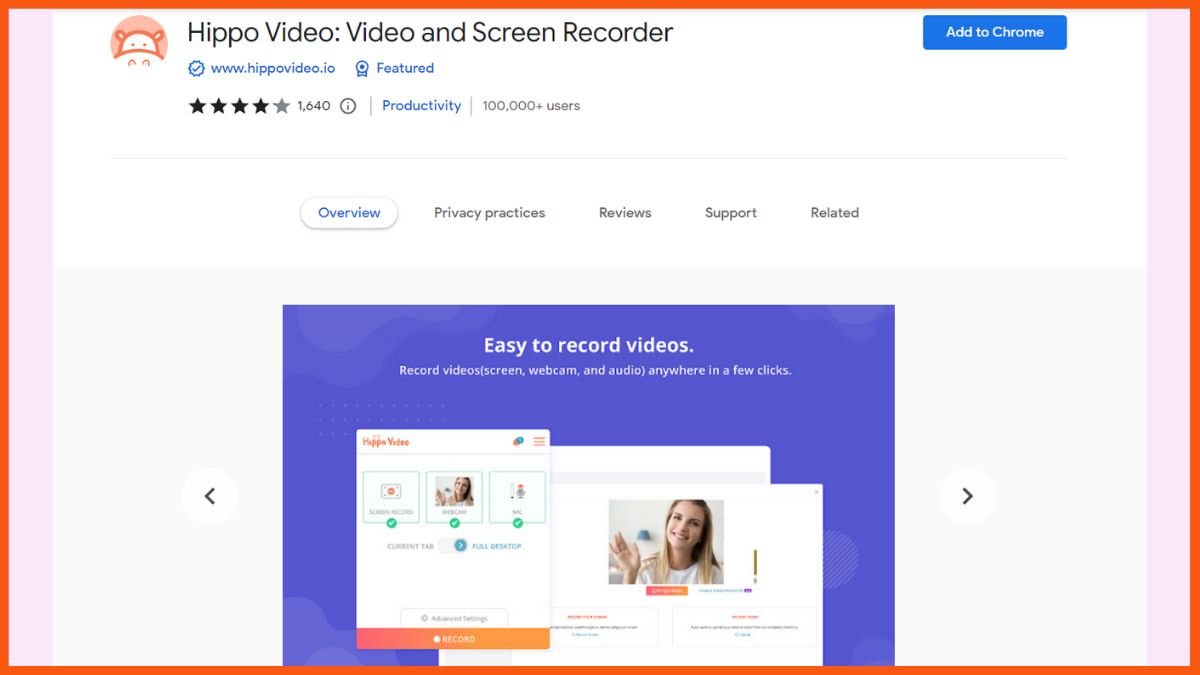
    Hippo Video

    Rating: 4.2
    Best for: Creating Top Notch Videos

    Hippo Video - Best Screen Recording Chrome Extension
    Hippo Video – Best Screen Recording Chrome Extension

    Using Hippo Video you can capture your screen, edit your videos, and instantly share them with others and get real-time metrics.

    Features:

    • Record your screen and use a webcam simultaneously.
    • With just a click you can share your video on social media, emails and websites.
    • Basic editing options include trim and crop.
    • Add call-outs, emojis, and tags.
    • Blur confidential information and add intro and end cards.
    • Generate gifs from videos and set them as thumbnails.

    Pros:

    • Record unlimited videos using the free plan.
    • Add your branding colour scheme to the videos and insert your logo.
    • Share your file directly with your domain using the SSL-enabled custom domain option.
    • Get detailed insights on who is watching your video, how are they seeing, where are they sharing and how are they reacting to your videos.

    Cons:

    • In the free plan, you can only record videos up to the length of 5 minutes.
    • Advanced editing options are only available in the premium plan.

    Pricing:

    • Starter – $19/month
    • Pro – $40/month/user
    • Growth – $65/month/user
    • Enterprise – $99/month/user

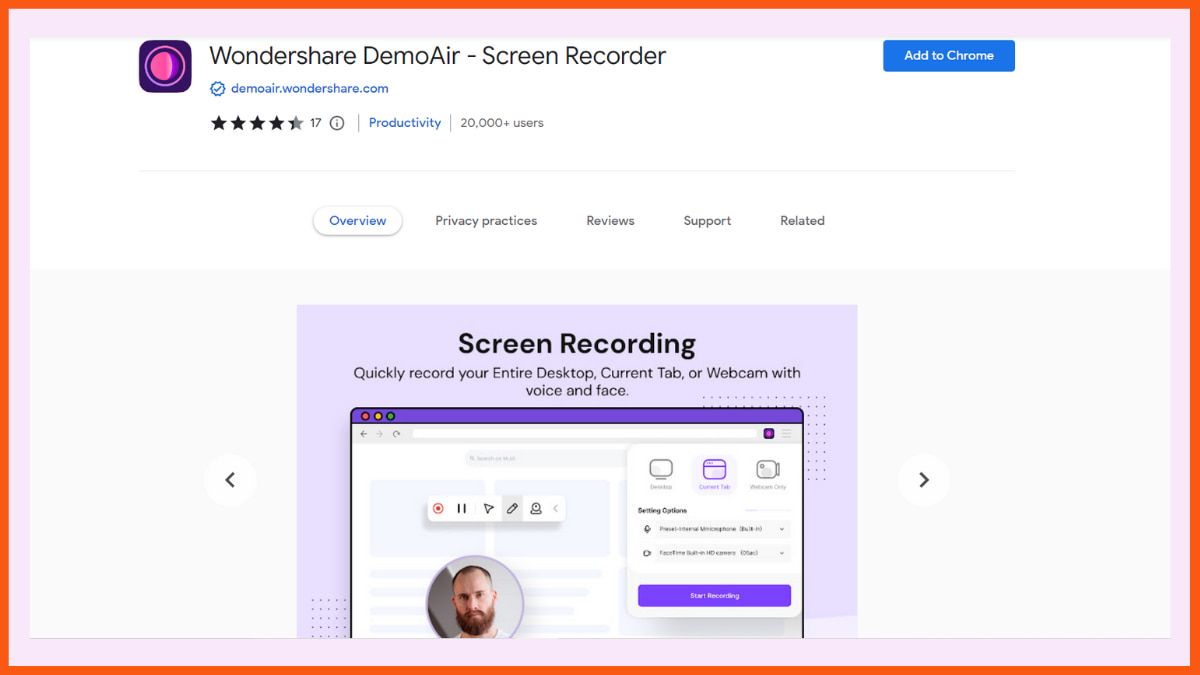
    Wondershare DemoAir – Screen Recorder

    Rating: 4.4
    Best for: Recording HD videos

    Wondershare DemoAir - Best Screen Recording Chrome Extension
    Wondershare DemoAir – Best Screen Recording Chrome Extension

    Being on top of the list, Wondershare DemoAir Online Screen Recorder is massively preferred for screen recording chrome extension. Through this, you can record the whole webpage or any part of it that you need. This chrome extension allows the users to draw in the recording and also, direct the viewers in the right manner.

    ‌‌One of the top features of a Wondershare DemoAir includes recording using the webcam and webpage recording. This comes in absolutely free and also, does not leave any watermark. The recorded videos can easily be shared to Google Classroom as well as directly to YouTube or email.

    Wondershare DemoAir – Screen Recorder Key features:

    • Record the desktop screen or webcam or both simultaneously.
    • Create Instant sharing links.
    • Add annotation while recording.
    • Editing features like trimming and others, using just one click.

    Pros:

    • Record videos in full HD resolution.
    • Trim the beginning and end of the video.
    • Automatically save videos to Google Drive.

    Cons:

    • The free version does not support cloud backup.

    Pricing:

    • Standard – $9/month
    • Premium – $15/month
    • Perpetual – $75 (one-time payment)

    Droplr

    Rating: 4
    Best for: Facility of Cloud Storage

    Droplr - Best Screen Recording Chrome Extension
    Droplr – Best Screen Recording Chrome Extension

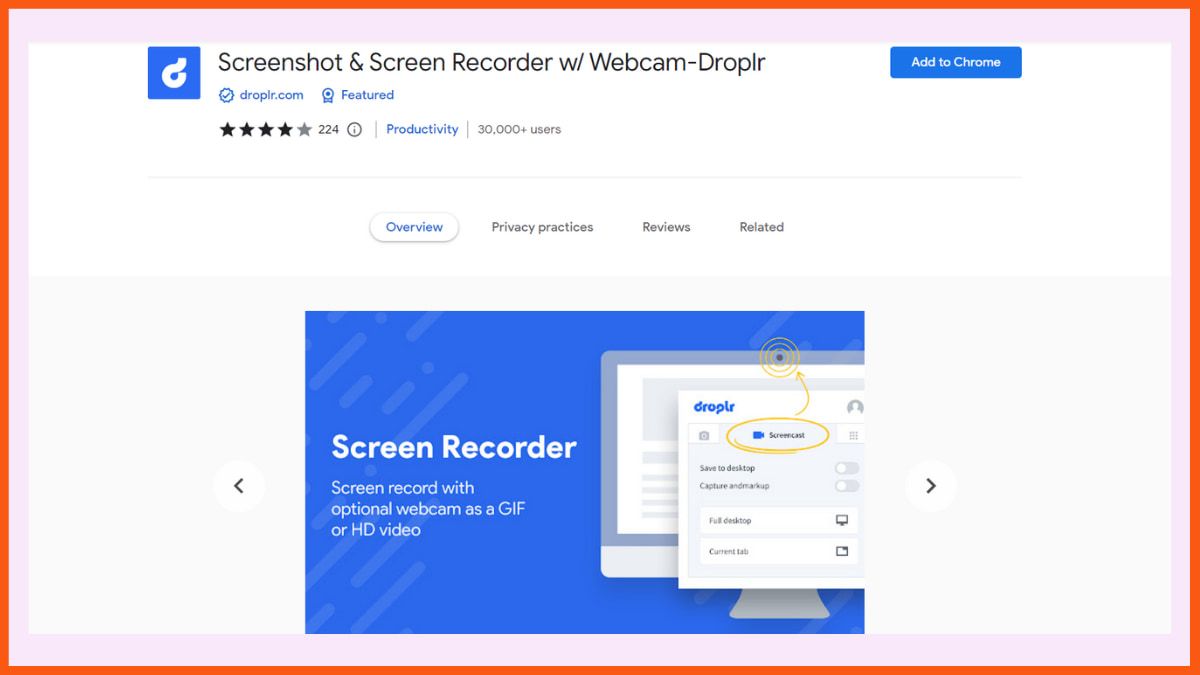
    Then there is Droplr, which comes with an all-in-one feature of screenshots and screen recording. And after recording the video, it automatically saves it to the cloud storage from where you can access it easily. The video will be kept as a link on the clipboard, which you can share anywhere.

    Droplr allows the users to download the screenshot in PNG format, and for the screen recording, you can save it directly on your device in a WebM format.

    Moreover, Droplr provides features like colour highlights, text annotation, image editing, and 30 emojis. With this chrome extension, you can easily record the selected screen area, full screen, or the whole page as per your requirements.

    Features:

    • Collaboration tools are available.
    • Adding unique and distinct shapes to the screenshots.
    • Stores the recorded videos and images in cloud storage.

    Pros:

    • Easily annotate with texts and colour highlights.
    • Recordings are automatically saved to the cloud.
    • Record the screen as GIF or HD video.

    Cons:

    • Cannot upload recorded videos directly to social media.

    Pricing:

    • Pro Plus – $6/month (billed annually)
    • Team – $7/month/user (billed annually)
    • Enterprise – Contact the team

    CloudApp Screen Recorder, Screenshots

    Rating: 4.4
    Best for: Screen Recording with Voice and Face

    CloudApp Screen Recorder, Screenshots - Best Screen Recording Chrome Extension
    CloudApp Screen Recorder, Screenshots – Best Screen Recording Chrome Extension

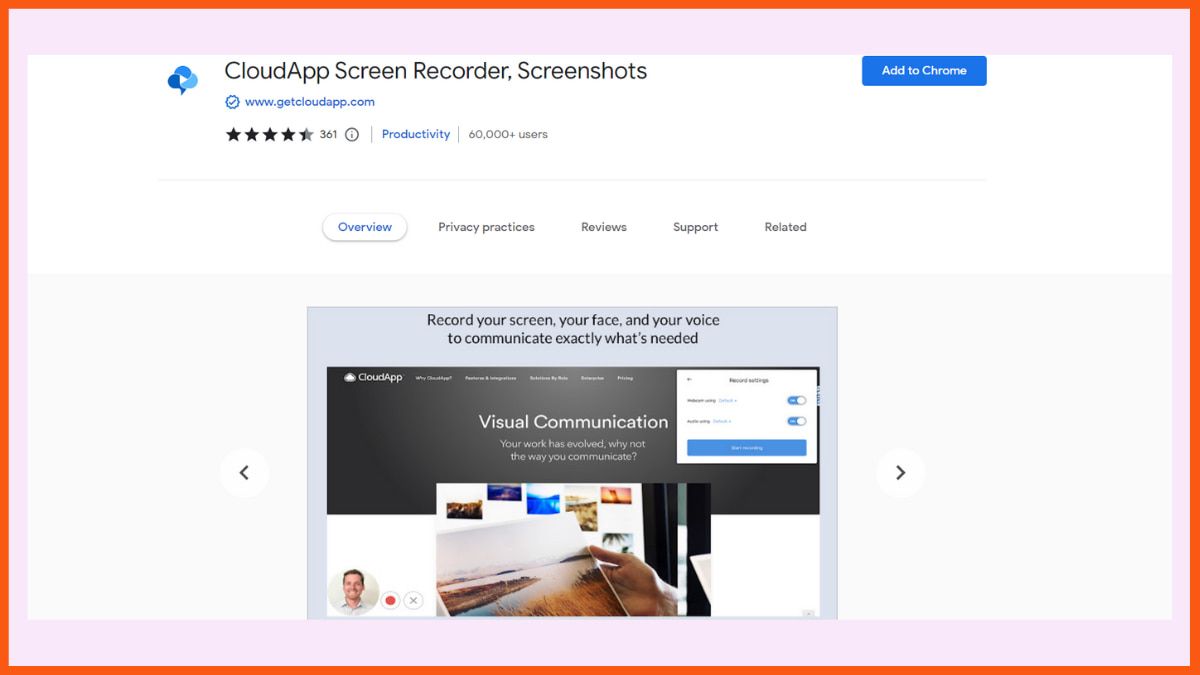
    Regarding simplicity, CloudApp is the perfect chrome extension for screen recording. It allows users to easily record videos from their screen, desktop or webcam input. Plus, the user can annotate the recorded videos during the recording, which benefits the instructor greatly. After saving the recording, you can easily share it via email and change the privacy settings between public and private.

    CloudApp does not charge any money for screen recording. However, it comes with a recording limit. So, to extend the limit, you’ll have to purchase its premium version. You can easily download the CloudApp chrome extension from the Chrome web store.

    CloudApp Key Features:

    Pros:

    • Easily share 1:1 feedback.
    • Directly share links to Slack.
    • Free sign-up.

    Cons:

    • The free version limits the length of video recording to up to 90 seconds.

    Pricing:

    • Individual – $9.95/month
    • Team – $8/month/user
    • Enterprise – Contact the team

    Conclusion

    We hope that you must have found the right tool for you. Since most of the screen recorders come with a free plan use them first for free and then go for the premium plan.

    FAQs

    Which are the best Chrome extensions for screen recording?

    Some of the best Chrome extensions for screen recording are:

    • Screencastify
    • Vmaker
    • Loom
    • Awesome Screenshot and Screen Recorder
    • Screen Recorder
    • Wondershare DemoAir
    • Hippo Video

    How to record your screen in Windows 10?

    To start recording press Win + Alt + R simultaneously on your keyboard. To stop recording press the blue button (or you can also press the same combination of keys which is Win + Alt + R). Press Win + G to access your recordings.

    Is Loom good for screen recording?

    Loom is one of the best screen-recording Chrome extensions. You can install it as a desktop, mobile, or Chrome app. After that, all you have to do is select the window you want, press record, and you are good to go with your screen recording.

  • Must have Chrome Extensions for Content Writers to Help Create Quality Content

    Chrome extensions are small software programs that improve the functionality of the Chrome browser and offer a better experience to users.

    If you regularly write articles, then you cannot miss out the chrome extensions mentioned in this article.

    These extensions will make your articles more polished and speed up your writing process.

    All of these extensions come with a free plan, so you can start using them instantly.

    Without further ado, here are the best Chrome extensions for content writers.

    Grammarly
    Wordtune – AI-Powered Writing Companion
    Speech to Text (Voice Recognition)
    Read Aloud: A Text to Speech Voice Reader
    Evernote Web Clipper
    OneTab
    Google Dictionary (by Google)
    Awesome Screenshot and Screen Recorder
    Marinara: Pomodoro® Assistant
    Toggl Track: Productivity & Time Tracker
    BlockSite: Block Websites & Stay Focused

    Number of Google Chrome Users Worldwide (2015-2020)
    Number of Google Chrome Users Worldwide (2015-2020)

    Grammarly

    Grammarly - Best Chrome Extension for Content Writers
    Grammarly – Best Chrome Extension for Content Writers

    I know many of you might be already using this extension but, I am mentioning this for the newbie writers.

    Many people think that to become a writer you must have expert grammar knowledge. However, this is not at all true.

    Even though I am a veteran writer I still make tons of grammar mistakes. To solve all of my typos and grammar mistakes I use Grammarly.

    Grammarly is a writing assistant that checks your text for spelling, grammar and punctuation errors and provides you with AI-powered suggestions in real time.

    It highlights the words that have grammar or spelling mistakes and provides you with a solution for them.

    Grammarly works everywhere – Gmail, Google Docs, Twitter, LinkedIn, Facebook and anywhere else you write online.

    With its free plan, you can correct your grammar, spelling and punctuation mistakes.

    But, with its premium plan, you will unlock the true potential of this tool.

    Using the premium plan you can adjust the tone of your article, find vivid words to spice up things, make your words sound more fluid and check plagiarism against 16 billion web pages.

    But, for beginners, the free plan will do most of the things.

    You don’t want to miss out on this tool. It’s a must-have tool for every writer.

    Wordtune – AI-Powered Writing Companion

    Wordtune - Best Chrome Extension for Content Writers
    Wordtune – Best Chrome Extension for Content Writers

    Many times we writers don’t get words to express our thoughts or want to convey our message with a different set of words.

    In such a scenario, you can use Wordtune.

    The tool will suggest alternative ways to phrase your text. You can change the entire sentence or just a word.

    You can even change the tone of your sentence from casual to formal.

    Translating sentences into English also becomes easy with Wordtune. You can also shorten or expand your sentence.

    With its Wordtune Editor, you can fix all of your grammar and spelling mistakes.

    In short, this is a powerful chrome extension for content writers that suggests innovative ways to convert your simple sentence into something more clear and more powerful.

    Speech to Text (Voice Recognition)

    Speech to Text - Best Chrome Extension for Content Writers
    Speech to Text – Best Chrome Extension for Content Writers

    Research shows that speech dictation is 3.0x faster than typing on a keyboard.

    So, if you want to speed up your writing process then you should consider speaking instead of just mere writing.

    Using this chrome extension, you can convert your speech to text in just a few seconds. The interface of the tool is very simplistic.

    In order to start recording, you just need to click on the microphone logo.

    Once you are done speaking, you can directly copy the text and paste it into your file.

    In terms of accuracy, the tool creates a lot of spelling mistakes but, you can fix them later on easily.

    Read Aloud: A Text to Speech Voice Reader

    Read Aloud - Best Chrome Extension for Content Writers
    Read Aloud – Best Chrome Extension for Content Writers

    If you are a content writer and want to listen to your article or any other text online, you can use the Read Aloud chrome extension.

    The tool can read PDFs, Google Docs, Google Play Books, Amazon Kindle, and more.

    You can play/pause, stop, rewind, and forward the playback with just a click.

    You can even change the voice, reading speed, and pitch or enable text highlighting.


    Top 7 Chrome Extensions Every Marketer Needs
    Chrome extensions help marketers to improve their skills and work. Popular extensions for marketers include MozBar, Grammarly, Bitly, and more.


    Evernote Web Clipper

    Evernote Web Clipper - Best Chrome Extension for Content Writers
    Evernote Web Clipper – Best Chrome Extension for Content Writers

    As a content writer, you need to constantly research a lot of things from several web pages.

    Many times you want to save certain paragraphs, URLs, or images from articles for future reference.

    Although to do this, you have to copy and paste text from the webpage to Docs.

    This is a very tedious task that takes a lot of time. To avoid this hassle, you can use Evernote Web Clipper.

    Using this chrome extension, you can save articles, web pages, and screenshots directly to your Evernote account.

    You can capture the entire article or certain parts of it with just a click.

    The tool also allows you to save web page URLs, images, and descriptions.

    You can take a screenshot of the page and then add text, highlights, and annotations.

    Organize your text and photos with relevant tags so, you can find them later on easily.

    In short, this tool keeps all of your research work in one place.

    OneTab

    OneTab - Best Chrome Extension for Content Writers
    OneTab – Best Chrome Extension for Content Writers

    Your computer screen is cluttered with numerous tabs when you are conducting online research.

    These tabs can hamper your research process and slow down the laptops.

    To make your research process more organized and fast, you can install the OneTab chrome extension.

    Using this tool, you can convert all of your tabs into a list.

    You can access them again individually or all at once. You can also upload your list of tabs to a web page and share them with others.

    Your tabs information is never shared with the developers.

    The tool helps you in saving 95% memory of your laptop.

    Google Dictionary (by Google)

    Google Dictionary - Best Chrome Extension for Content Writers
    Google Dictionary – Best Chrome Extension for Content Writers

    We come across several words that we are not familiar with when reading and writing articles.

    At such times, we copy the word and paste it on Google to find its meaning.

    This is a long process and distracts you from the main task. To avoid this you can use Google Dictionary.

    Using this tool, you can double-click any word and find its meaning.

    You can even store the history of words which you’ve looked up and read them again later on.

    The tool also allows you to translate foreign words into your language.

    Awesome Screenshot and Screen Recorder

    Awesome Screenshot and Screen Recorder - Best Chrome Extension for Content Writers
    Awesome Screenshot and Screen Recorder – Best Chrome Extension for Content Writers

    As the name suggests, using this tool, you can capture screenshots and record your screen.

    You can take a screenshot of the visible area or the entire page. Using its built-in editor, you can add annotations to your screenshots.

    You can instantly share your recordings with others online or save them on your computer.

    The tool also connects seamlessly with Trello, Slack, Asana, Jira, and more.

    If you want to take screenshots or screen recordings of certain web pages and add important annotations to them, this Chrome extension is the perfect option.


    14 Chrome Extensions to Improve Google Search Results
    Google Chrome has many extensions to apply for different purposes. The article includes various chrome extensions to use for better Search Results.


    Marinara: Pomodoro® Assistant

    Marinara - Best Chrome Extension for Content Writers
    Marinara – Best Chrome Extension for Content Writers

    Pomodoro is a time management technique, where you work in 25-minute intervals and then take a break of 5 minutes.

    After the break, you again work for 25 minutes and then again take a break of 5 minutes.

    This cycle keeps on repeating 4-5 times. After that, you take a long break of 20-30 minutes.

    Marinara works on this same Pomodoro principle.

    Basically, it is a timer app that starts a 25 minutes work session and then gives you a 5-minute break.

    Once the break ends, you will hear a beep or get a notification.

    You can take both short and long work sessions.

    The tool even tells you how many Pomodoros you have done in a particular month.

    Toggl Track: Productivity & Time Tracker

    Toggl Tracker - Best Chrome Extension for Content Writers
    Toggl Tracker – Best Chrome Extension for Content Writers

    Toggl is a time management tool that tracks how much time you have spent on each of your projects.

    With just a click, you can start the time and the tool will automatically analyse how much time you spend on all your active tabs.

    It also has 3 advanced technicalities:

    • Pomodoro timer
    • Idle detection
    • Tracking reminder

    BlockSite: Block Websites & Stay Focused

    BlockSite - Best Chrome Extension for Content Writers
    BlockSite – Best Chrome Extension for Content Writers

    If you find yourself constantly visiting websites like Facebook or YouTube that waste a lot of your time while writing then you should use the BlockSite chrome extension.

    You can block all the distracting websites altogether and set a focus timer and track your whole day.

    The tool also allows you to block all inappropriate adult content.

    You can password-protect your blocked websites and apps to end the cycle of procrastination.

    If you are a creative person, you can design your own customized blocked pages.

    You can even set the Pomodoro technique timer.

    It syncs your data between your desktop and mobile. You can also get helpful insights on how much time you have spent on websites.

    Conclusion

    You can use any or all of these chrome extensions and improve your writing skills.

    These tools will increase your productivity while writing. So, what are you waiting for? Install them right now.

    FAQs

    Which are the best Chrome extensions for content writers?

    Some of the best and most useful Chrome extensions for content writers are:

    • Grammarly
    • Wordtune
    • Speech to Text
    • Read Aloud
    • Google Dictionary (by Google)
    • Evernote Web Clipper

    Which is the best Chrome extension to fix grammar and punctuation mistakes?

    Grammarly is the best Chrome extension to fix grammar and punctuation mistakes.

    Which Chrome extension is best for time management?

    Toggle Track is one of the best Chrome extensions to track your time and boost your productivity using the Pomodoro technique.